CRM Settings
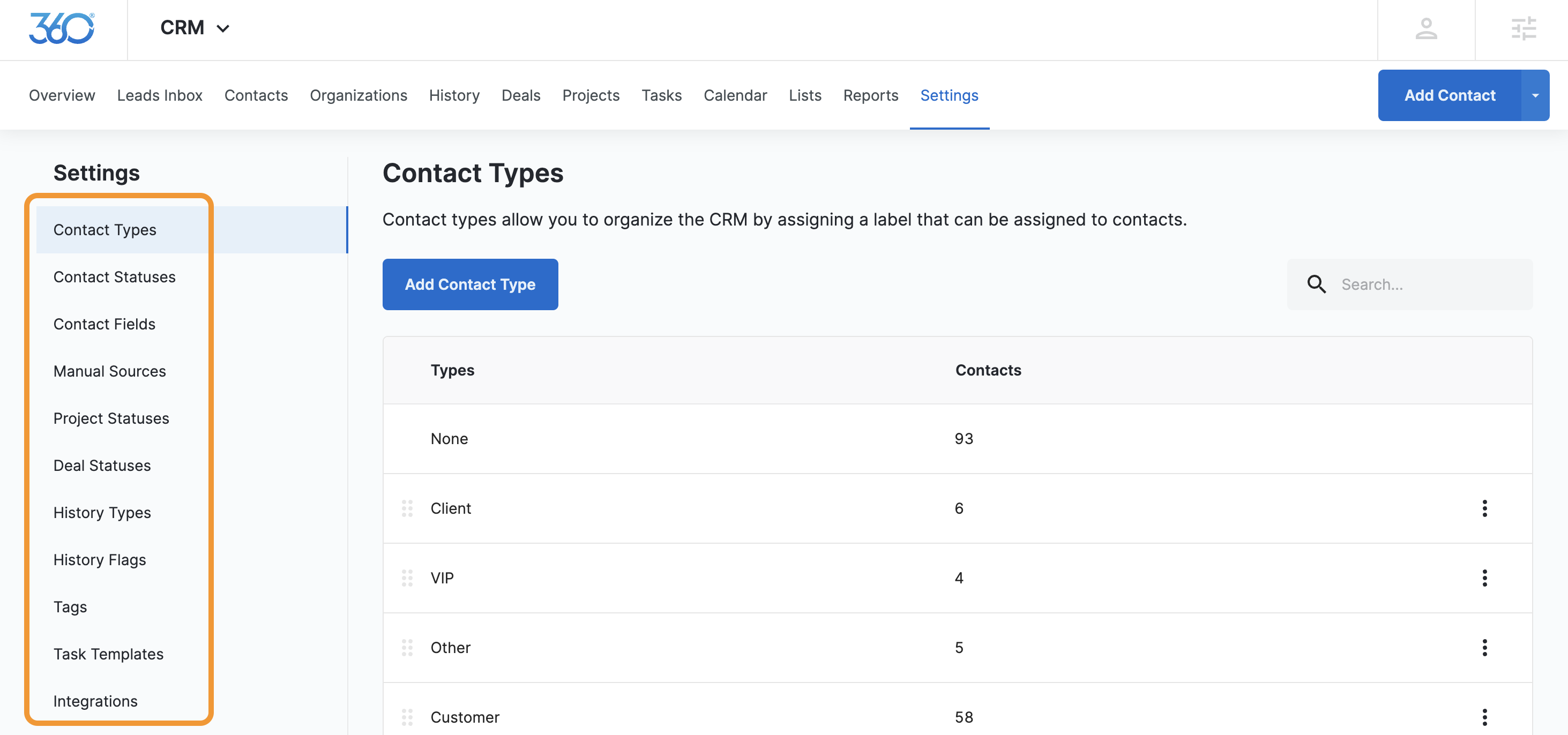
You can manage and customize your CRM by navigating to the Settings tab. Use the options on the left-hand sidebar to select which settings you want to edit.
Contact Types
Contact types are labels that help you organize your CRM. You can group your contacts into clean categories to save time when filtering your database.
Add or Edit Contact Types
When you create a web form, create a matching Contact Type in the CRM. This ensures that the system automatically segments customers when they submit the form.
To add a new Contact Type: Click Contact Types on the left-hand menu and click the blue Add Contact Type button. Enter the name and click Save.
To edit a Contact Type: Click the overflow menu (three-dot icon) to the right of any type and select Edit. Enter the new name and click Save.
Contact Statuses
Statuses show exactly where a customer stands in your business lifecycle at any given moment. Keeping these up to date helps your team stay informed.
Consider how you handle different milestones (e.g., New Lead vs. Current Customer). Add custom statuses so your teammates always know the next step. You can change a contact's status instantly from their profile.
Contact Fields
Contact fields are the individual boxes that display customer information, such as phone numbers, email addresses, or custom notes.
Field Strategies
Required Fields: If you need specific information for every single customer, set that field to Required.
Add Contact Form: You can choose to display important fields directly on the form you use to type in new contacts manually.
Headings: Use text headings to separate your fields visually and keep contact profiles clean.
Add or Edit Contact Fields
When you create a new field on a website form, create a matching Contact Field in the CRM so your data transfers successfully.
To add a new section: Click the blue + Contact Section button. Sections help group related fields together.
To add a new field: Click the + Contact Field button below any custom section.
To rearrange fields: Click and drag fields up or down the list to change their order.
To edit or delete a field: Click the overflow menu (three dots) on the right side of the field.
Note: The Contact Info section at the top contains your Primary Fields. You cannot edit, delete, or add new fields to this specific section.
Rearrange Multiple-Choice Fields
The system does not allow you to drag and drop options inside an existing dropdown, radio button, or checkbox field. To change the order of your choices, follow these steps:
Delete the choices up to the point where you want to make the change.
Click Save.
Edit the field again and type your options back in your preferred order.
Critical Warning: Deleting field options permanently deletes any customer data stored in those fields. Before you delete options, export your contacts' information along with their unique CRM IDs. You can then re-import the data into your newly arranged field.
Project Statuses
Projects help you track actual work after a lead becomes a paying customer.
Customize Terms: Change the word "Project" to a term that fits your specific business (like Jobs or Installs).
Track Work: Add custom statuses so your teammates know the exact progress of every active job.
Deal Statuses
Use Deals to track your sales pipeline and track potential income. Deal statuses show the exact stage of an active sales opportunity.
Customize Terms: If your team works on "Bids" or "Estimates" instead of "Deals," you can rename the term itself.
Track the Pipeline: Add custom milestones to describe your sales steps. This gives your team the details they need to close more sales.
History Types and Flags
Use History settings to track phone calls, meetings, and emails between your team and your contacts.
History Types: Add activities for your most common interaction types. Teammates can quickly log these actions to keep the whole company updated.
History Flags: Use flags to add extra context that does not fit into a standard type (e.g., Urgent, Weekly Meeting).
Quick-Management Tools
Tags
Create short keyword tags to search for, filter, and group your contacts quickly.
Task Templates
Build and save template checklists. You can select these templates whenever you create new tasks to save time on repetitive work.
Integrations
Review this page to see a list of all available third-party applications that connect directly to your CRM.