Managing Your Websites 360® Site in Marketing 360®
Beginning June 2024, Websites 360® customers will log in to Marketing 360® to manage their website(s). The new version of Websites 360® will have the same functionality as before, with just a few design and navigation changes.
Websites and billing will not be affected by this change. Users can expect the same user-friendly website builder in a new location and with a fresh new look.
If you have any questions our support team is here to assist you. You can reach out to us at support@marketing360.com.
How to access your Websites 360® Website
-
Visit app.marketing360.com and log in using your Marketing 360 account login details. Need help finding your login information or didn’t receive an email with login instructions? Use this link to reset your password or contact our support team for guidance. Troubleshooting the password reset email.
- Select the Websites app in the Marketing 360® Applications section of your main dashboard, or click on the dropdown menu and select the Websites app.
- You’ll then be taken to your Websites dashboard. Learn more about the Marketing 360® Websites dashboard in this support guide.
Navigational changes
With this update, we’ve made a few adjustments to the look and feel of our website builder, along with a couple navigational changes listed below:
“Content” is now “Pages”
We’ve renamed the “Content” section to “Pages” to more clearly communicate what Websites 360® users can manage in this section.
Collections is now it’s own page
You can now access your Collections from the main navigation. This was previously a subpage of ‘Content”.
How to access your website’s settings
Access your site’s settings by clicking on “Settings” in your navigation. This will open a Settings page that lists all the individual settings pages on the left hand side.
How to access developer tools
You’ll now access developer tools from the Developer page.
How to create a new site
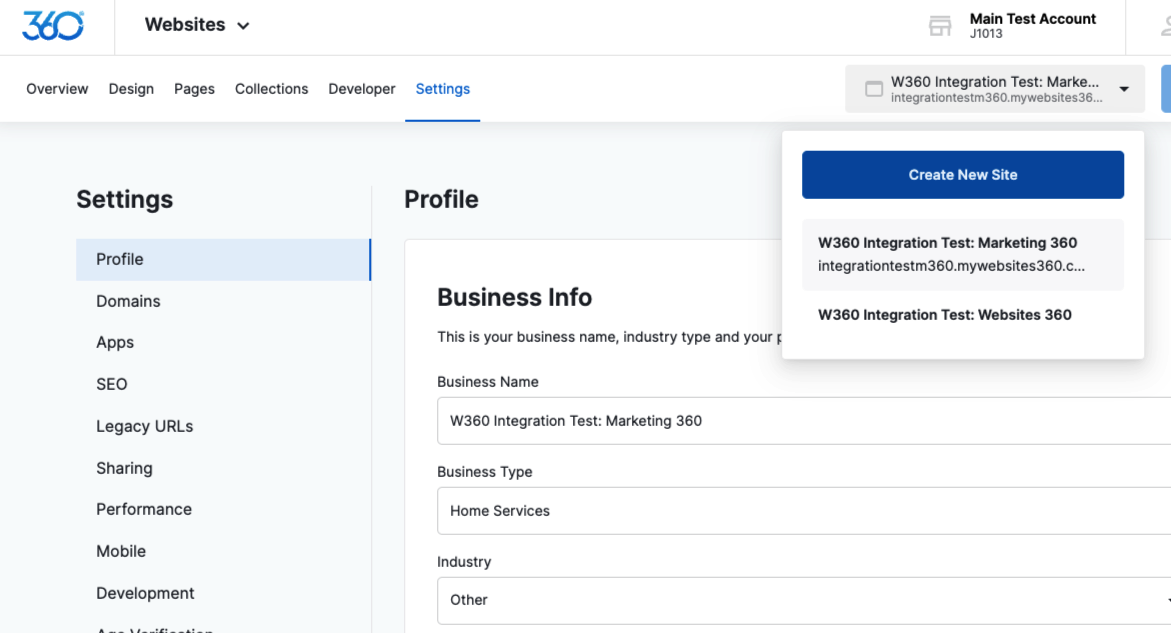
To create a new website, click on your website’s name in the top right corner, and click the “New Site” button that appears.
How to add a new user to manage your Marketing 360® website
Want to add a contributor to your website? You’ll need to grant them access to your Marketing 360® account by following the steps in this guide.
Select a role based on the level of access you want the user to have, and fine-tune their permissions to limit what other Marketing 360® apps they have access to.
Related Articles
My Site is Down! How Do I Fix It?
If your website is currently not live, then it is likely due to one of the following three reasons: There is a billing issue. There is a domain issue: Your domain name(s) is not added properly within your website dashboard. Your domain(s) is not ...Add Google Analytics to Websites 360®
Google Analytics offers you a great and free way to monitor the different traffic going to your website. You can verify Google Analytics by adding the Google Analytics 4 Tag - also known as the G-Tag - to your website using the steps below. Before ...Verify & Submit Your Websites 360® Site to Google and Bing
Submitting your sitemap to search engines like Google and Bing ensures that your website is listed in their search results. While search crawlers will eventually find your site, submitting your sitemap speeds up that process. Submitting to Bing also ...Add a Video to Your Websites 360® Site
You can add video content to your website by embedding a video that's been uploaded to a third-party site like YouTube or Vimeo. This guide covers both options. Option 1: Add a Vimeo Video Navigate to the Vimeo video you want to add to your website. ...Add a Jotform to Websites 360®
To add a custom form to your website built with Jotform, a third party service you can integrate into your pages, first go to jotform.com and click "Sign Up" in the top righthand corner. In Jotform, navigate to the My Forms panel, select the orange ...