Use the MADi Site Builder in the Websites App
MADi Site Builder uses AI to instantly establish a complete, beautifully designed website tailored to your specific industry. It automatically generates optimized layouts, structures core pages, and selects contextually relevant images—giving you a strong foundation that you can easily refine and publish in minutes.
Pro Tip: Fill out your Brand Profile first! When you complete your Brand Profile, your business information, logos, and color palette automatically pull into the setup steps below and populate directly onto your website. This helps MADi tailor content and images specifically to your business.
We recommend filling out these key Brand Profile fields before starting:
Business Name
Industry
Business Information
Brand Voice
Location (Phone number, email address, physical address if applicable)
Logo
Primary Brand Color
Business Hours
Business Objectives
Social Profile Links
Target Market
Primary Products or Services
Once you’ve completed your Brand Profile, follow the steps below to create a new website with MADi.
Website Setup
Navigate to the Websites app within your dashboard, click Create New Site, and select Create With MADi.
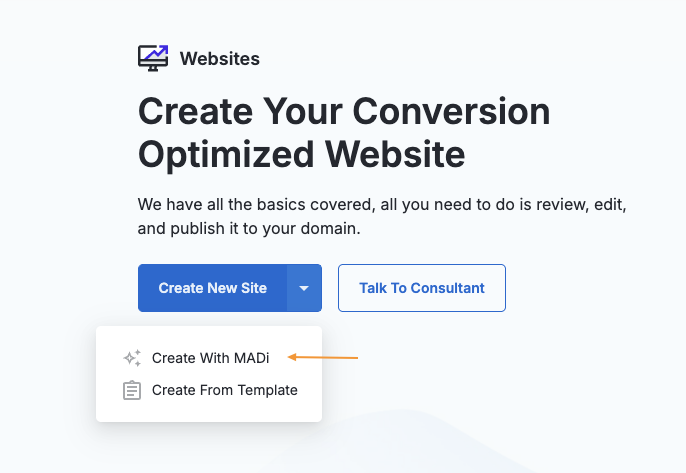
Step 1: Enter Your Basic Information
Enter your business information with details such as: business name, industry, phone number, address, current website URL, and brand information. This information provides MADi with additional context to select relevant imagery and content during your site build. Your business information will also appear in the footer of your site.
Tip: Toggle the below setting ON to use this information to fill out your brand profile.
Step 2: Define Your Key Details
This step will help define the products or services you offer as a business, as well as service areas you’d like to target. The information gathered ensures your website drives conversions and is optimized for organic search. If you have selected a lead generation vertical this will appear as services offered. If you have selected an e-commerce vertical, this step will appear as products that are sold instead of services offered.
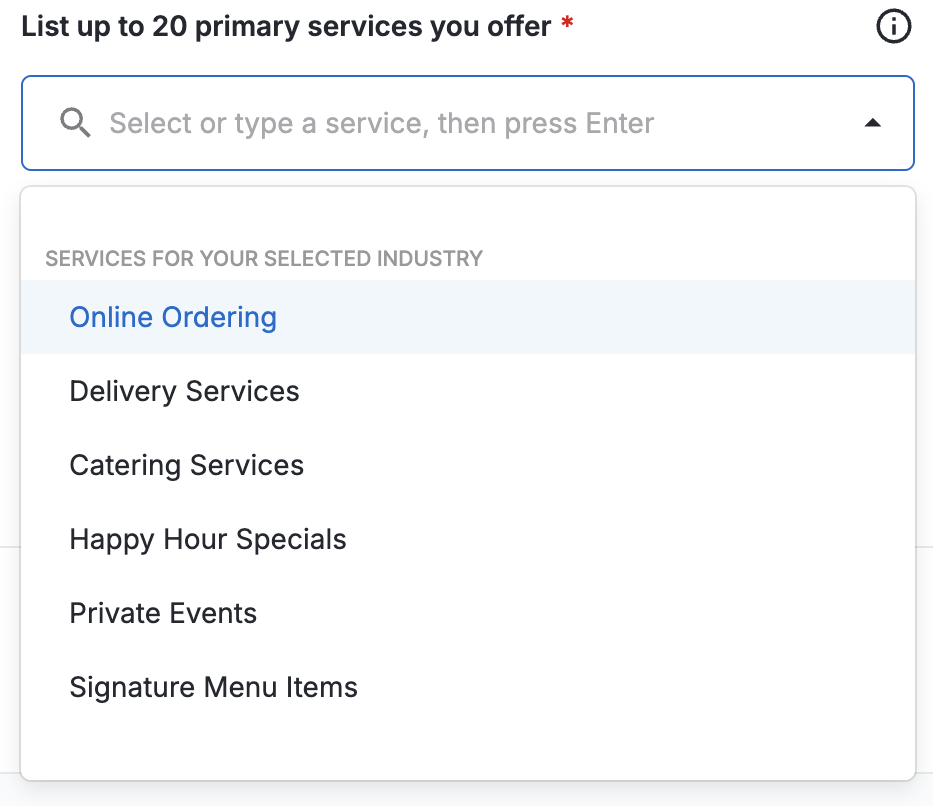
Generated suggestions of products or services will be generated from the brand profile, like this, in the dropdown on the left. These recommendations will be based on the vertical you selected. You can also manually enter your products/services offered.
Service areas can be set to local or regional in this step. Setting these locations will help impact your SEO by determining where your business operates.
Selecting Local gives you the ability to target specific cities.
Selecting Regional lets you target broader areas such as a state or the whole country.
Step 3: Select Your Preferred Image Style
Step 4: Personalize Your Branding
This step will allow you to set more fine-tuned details for your site build.
Preferred Call to Action: A call to action will be suggested based on your vertical, or you can customize it on your own by selecting Other.
Logo (optional): If you have a logo, please upload it to the image upload field. Verify it is a transparent logo (PNG, up to 500px wide) in order to display clearly in the header of the site. You can update these at any time under Sitewide > Header & Logo.
Uploading a logo is optional; if you do not have a logo, a simple text logo will be generated for you.
Primary Color: Confirm your primary brand color that aligns with your business aesthetic.
A preview of your call to action buttons will appear.
Step 5: Select Your Theme
You will now have the ability to select your preferred theme and layout for your site. Each theme includes unique fonts and layouts tailored to your brand. Everything is fully customizable once your site is made. MADi will use the information collected to create your site catered to your business. Clicking the ‘Next’ button in this step will generate your live site that is ready to use on a subdomain.
Wrapping Up
Once you go through the setup steps your site is live and ready for use on a subdomain. When you are ready to launch your website, you can follow these steps to publish your website on your domain.
To further customize your site after it is built, you can edit your website's styles in the Design panel.